Payment Terms
Payment terms say how many days after its date a bill or invoice is due: Net 30 means due 30 days after the date, Due on receipt means due the same day. When you enter a bill or an invoice, the terms you choose fill in its Due Date, and the due date decides when the document shows as Overdue and which column of the aging reports it falls in.
Structally calls them Terms on screen. The list is shared by bills and invoices, and one of them can be the Company Default that new bills and invoices start with.
Before You Begin
- You need Edit access to Accounting to add or change terms. Company Admins and Accountants have it; Viewers can see the list; Project Managers cannot open it. See Roles and Permissions.
Navigation
Accounting → Terms → New Terms (beside the page title) to add terms. Click a name to open its page.
The Terms List
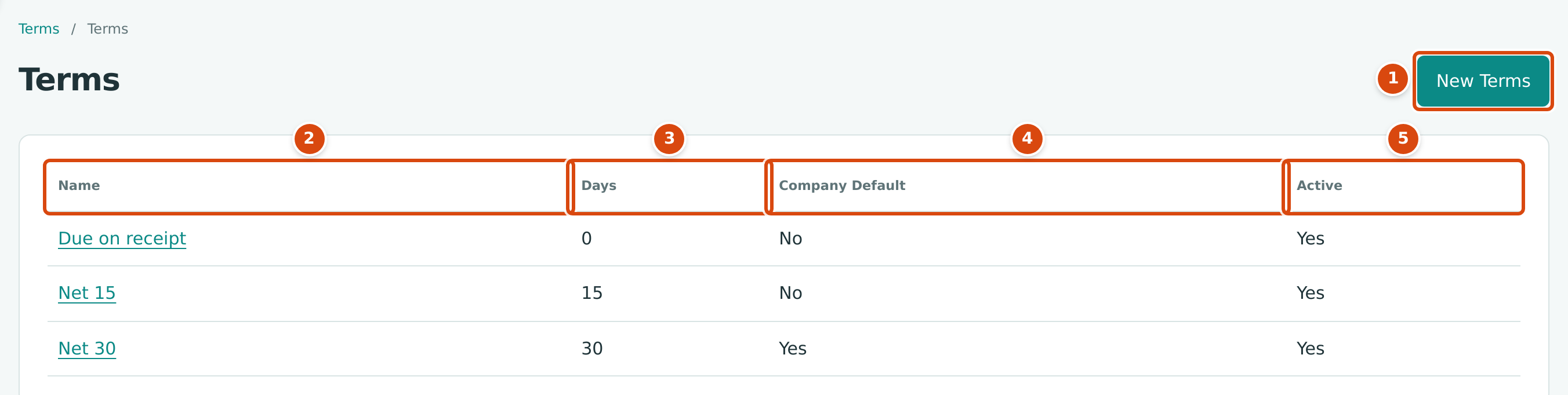
- New Terms: opens the New Terms drawer for new terms (Edit access only).
- Name: how the terms appear in pickers. Click it to open the terms page.
- Days: how many days after the document date it is due.
- Company Default: Yes for the terms new bills and invoices start with. Only one can be the default.
- Active: No hides the terms from pickers.
The sample company has three terms: Due on receipt (0 days), Net 15 (15 days) and Net 30 (30 days, the company default).
Adding Terms
- Open Accounting → Terms and click New Terms beside the page title. The New Terms drawer opens on the right.
- Type the Name, for example Net 45.
- Type the Days, a whole number from 0 to 365.
- Tick Company Default if new bills and invoices should start with these terms. This clears the default from the terms that had it.
- Click Add Terms. Structally adds the terms as active and opens their page. Cancel (or ×) closes the drawer without adding anything.
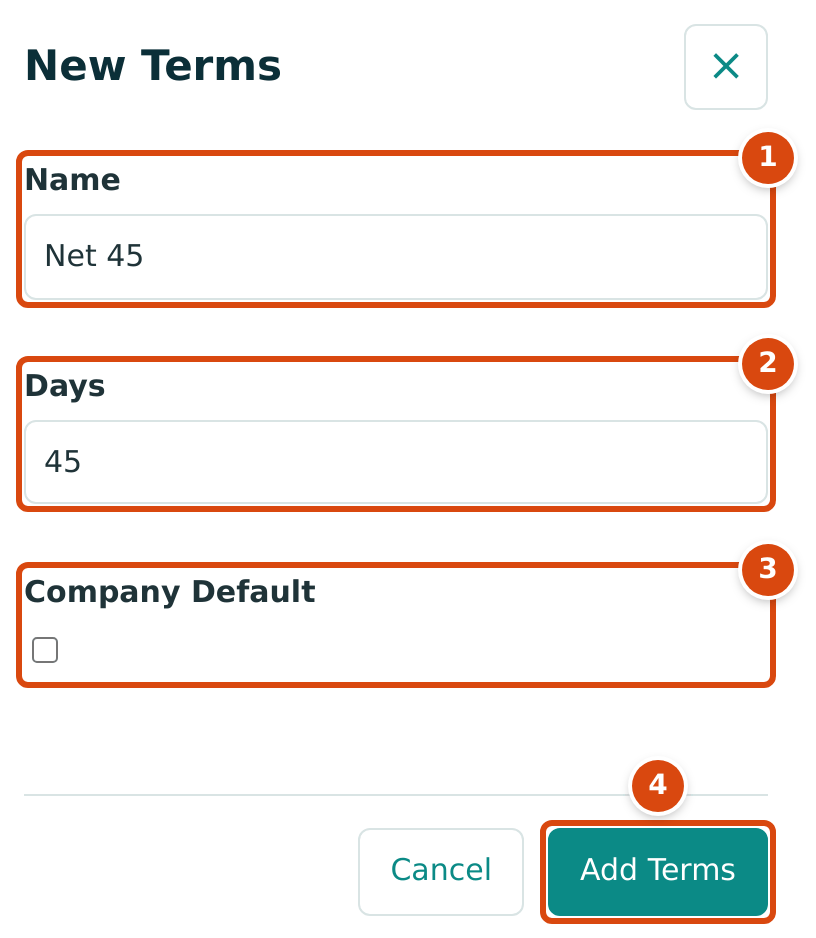
- Name: up to 60 characters, not used by other terms.
- Days: 0 to 365.
- Company Default: tick it to make these the terms new bills and invoices start with.
- Add Terms adds the terms.
If the terms cannot be added, for example because the name is already in use, the drawer opens again with what you typed and the reason.
Adding Terms From a Bill or Invoice
On a bill or invoice, or in the Terms field of a vendor or customer, type a name that is not in the list and choose + Add New. The New Terms panel asks for Name, Days (starting at 0) and Company Default; click Create to add the terms and select them. + Add New is offered only to users with Edit access to Accounting.
Changing Terms
- Click the terms' name to open the terms page. Its Terms Details card shows Name and Days, then Company Default and Active, in two columns. Click Edit.
- Change the Name, Days, Company Default or Active.
- Click Save, or Cancel to leave them unchanged. Structally shows Terms saved.
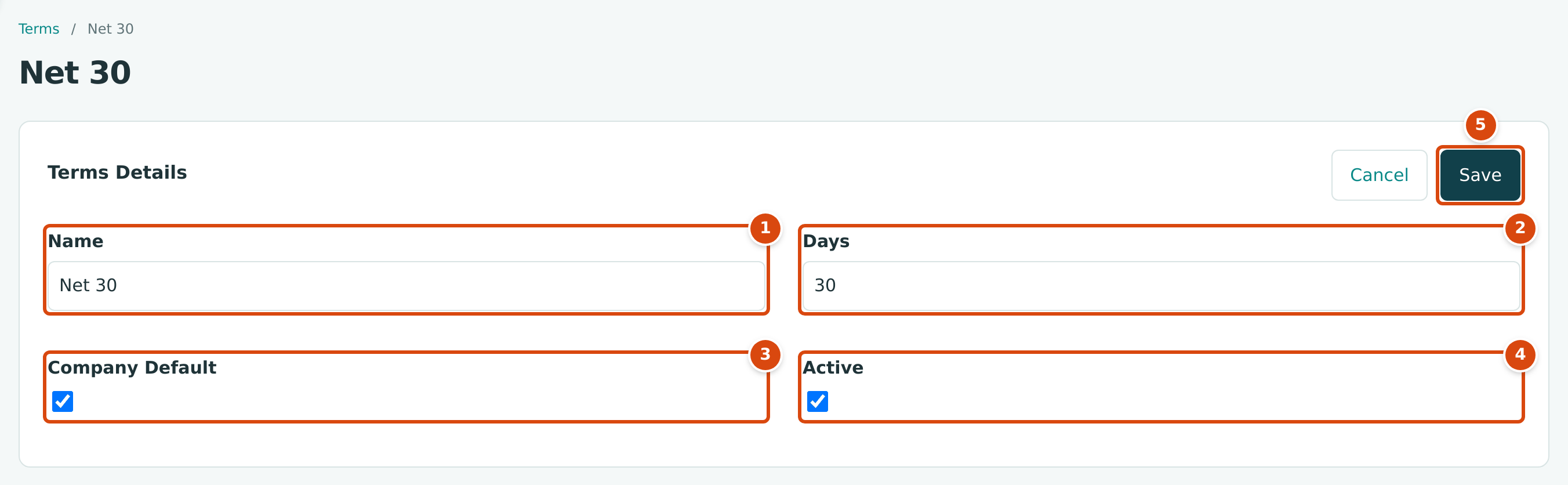
- Name: up to 60 characters, not used by other terms.
- Days: 0 to 365.
- Company Default: ticking it here removes it from the other terms.
- Active: untick to stop offering the terms.
- Save saves the changes.
- Terms cannot be deleted. Untick Active to retire them. Inactive terms are not offered on new bills and invoices or in vendor and customer pickers.
- Inactive terms cannot be the company default: saving terms with Active unticked also clears Company Default. New bills and invoices then start with No Terms until you choose another default.
- Changing Days does not change bills and invoices already entered. Each document keeps the due date it was saved with.
How Terms Set the Due Date
On a new bill or invoice, Terms starts with the company default. Choosing the vendor or customer does not change it. Structally works out Due Date as the Date plus the terms' Days, counting calendar days, and recalculates it whenever you change the date or the terms.

- Date: the bill or invoice date.
- Terms: here Net 15.
- Due Date: 15 days later, 11/04/2026.
You can also type a due date yourself. Once you do, changing the date or terms no longer overwrites it. Choosing No Terms clears a calculated due date.
Vendors and customers can carry their own Terms on their pages. Structally uses them to fill in the terms of retainage releases (see Releasing Retainage); new bills and invoices still start with the company default.
Field Reference
| Field | Description | Required | Example |
|---|---|---|---|
| Name | Up to 60 characters, unique in the company (capital and small letters count as the same). | Yes | Net 45 |
| Days | Days after the document date, a whole number from 0 to 365. | Yes | 45 |
| Company Default | The terms new bills and invoices start with. Only one at a time. | No | Ticked |
| Active | Shown when editing. Inactive terms are not offered for new documents. | No | Ticked |
Worked Example: Due Dates Under Net 15 and Net 30
| Document Date | Terms | Arithmetic | Due Date |
|---|---|---|---|
| October 20, 2026 | Net 15 | October 20 + 15 days (11 days to October 31, then 4 in November) | November 4, 2026 |
| September 30, 2026 | Net 30 | September 30 + 30 days | October 30, 2026 |
| October 20, 2026 | Due on receipt | October 20 + 0 days | October 20, 2026 |
The first row is the figure above. The second matches the sample company's draft bills BILL-2026-000139 and BILL-2026-000140, dated September 30, 2026 and due October 30, 2026, 30 days later.
What Happens After You Save
- No journal entry is written; terms only set due dates.
- New and changed terms appear at once in the Terms pickers of bills, invoices, vendors and customers (when active).
- The Audit Log records each change under
create_termsorupdate_terms.
Common Mistakes and Troubleshooting
| Message or Symptom | Why It Happens | What to Do |
|---|---|---|
| Terms name already in use | Other terms have the same name, ignoring capitals. | Choose another name, or reactivate the existing terms. |
| The Days field is refused. | It is empty, negative, over 365 or not a whole number. | Enter a whole number from 0 to 365. |
| There is no New Terms button beside the title. | You have View access to Accounting, not Edit. | Ask a Company Admin or Accountant to add the terms. |
| A new bill or invoice starts with No Terms. | No active terms are the company default. | Tick Company Default on the terms you want. |
| The due date does not change when you change the terms. | You typed the due date yourself. | Clear the due date or type the right one. |
| A vendor's own terms are not used on a new bill. | New bills start with the company default. | Choose the vendor's terms in Terms. |
| Terms are missing from a picker. | They are inactive. | Reactivate them on their page. |